

Before you start
Make sure you have:- A valid Sterndesk API key
- Access to custom connectors in Claude or Claude Desktop
Note: Every API key is tied to a Sterndesk account and organization. You don’t need to sign in to Sterndesk separately when connecting Claude — the API key is used to authenticate the connection.
1. Open Connectors
In Claude or Claude Desktop:- Open Settings.
- Go to Connectors.
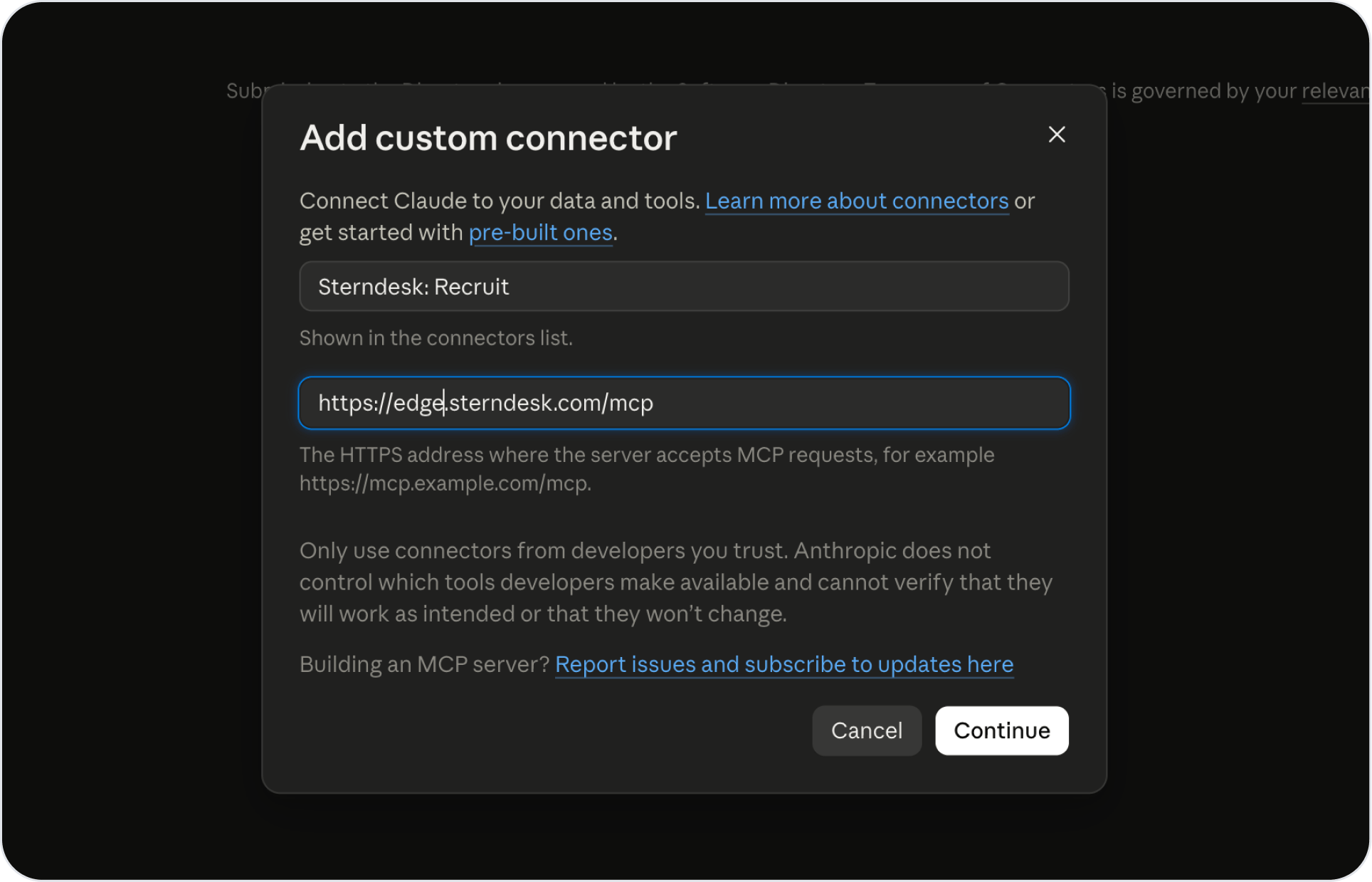
- Click + Add to add a custom connector.
2. Add Sterndesk Recruit
Enter the following MCP server URL:https://edge.sterndesk.com/mcp For the connector name, we recommend:
Sterndesk: Recruit
3. Configure authentication
Under Authentication, select No sign-in. Sterndesk Recruit authenticates requests using your personal API key. Under Request headers, add:Header:
authorizationValue:
Bearer YOUR_API_KEY
Enable Required for this header.Replace
YOUR_API_KEY with your personal Sterndesk API key.
For example:Bearer sk_…
Important: There must be a space between
Bearer and your API key.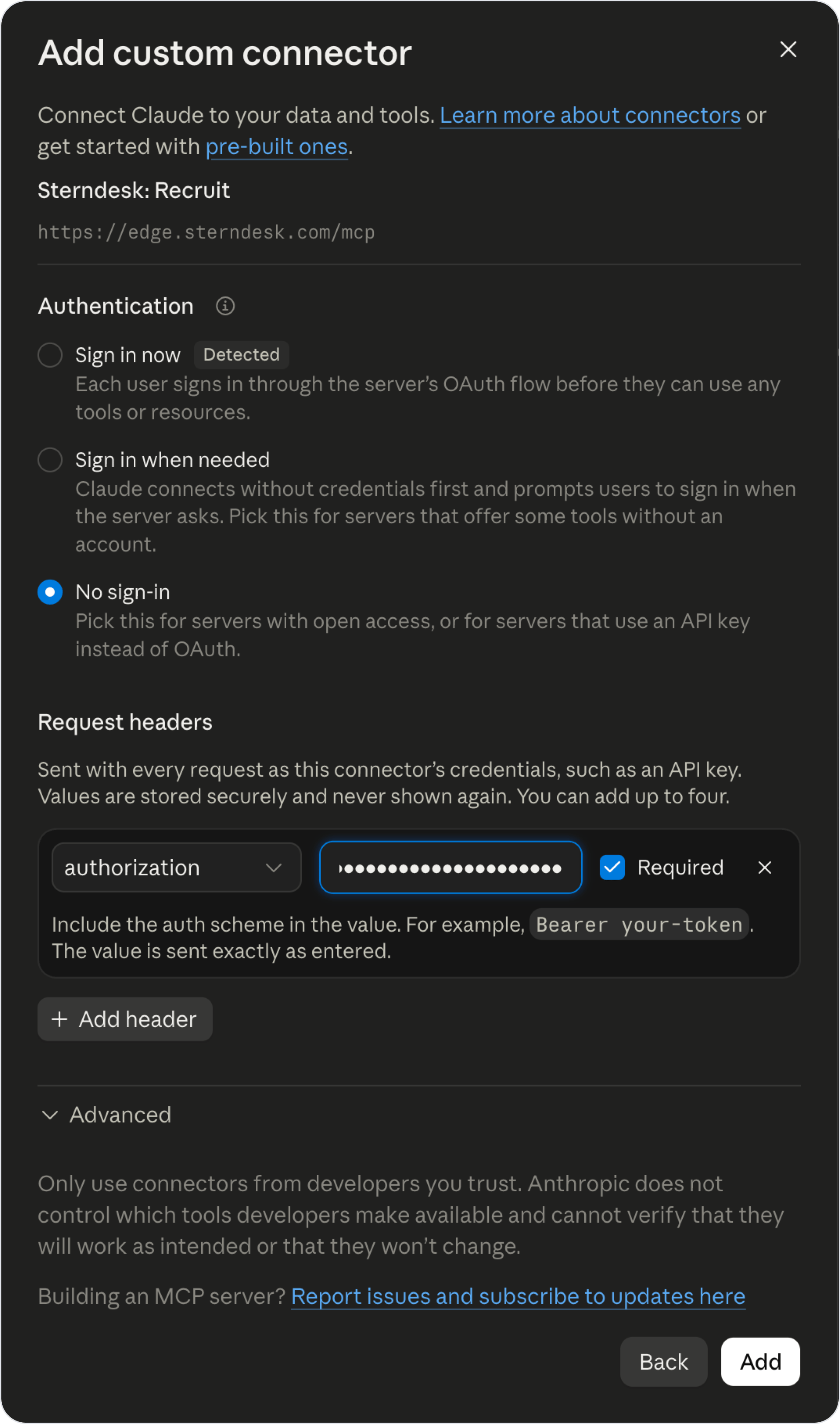
4. Verify the connection
Click Add to finish the setup. Open Sterndesk: Recruit from your connectors. Once the connection is successful, Claude will display the Sterndesk Recruit tools available through the MCP server.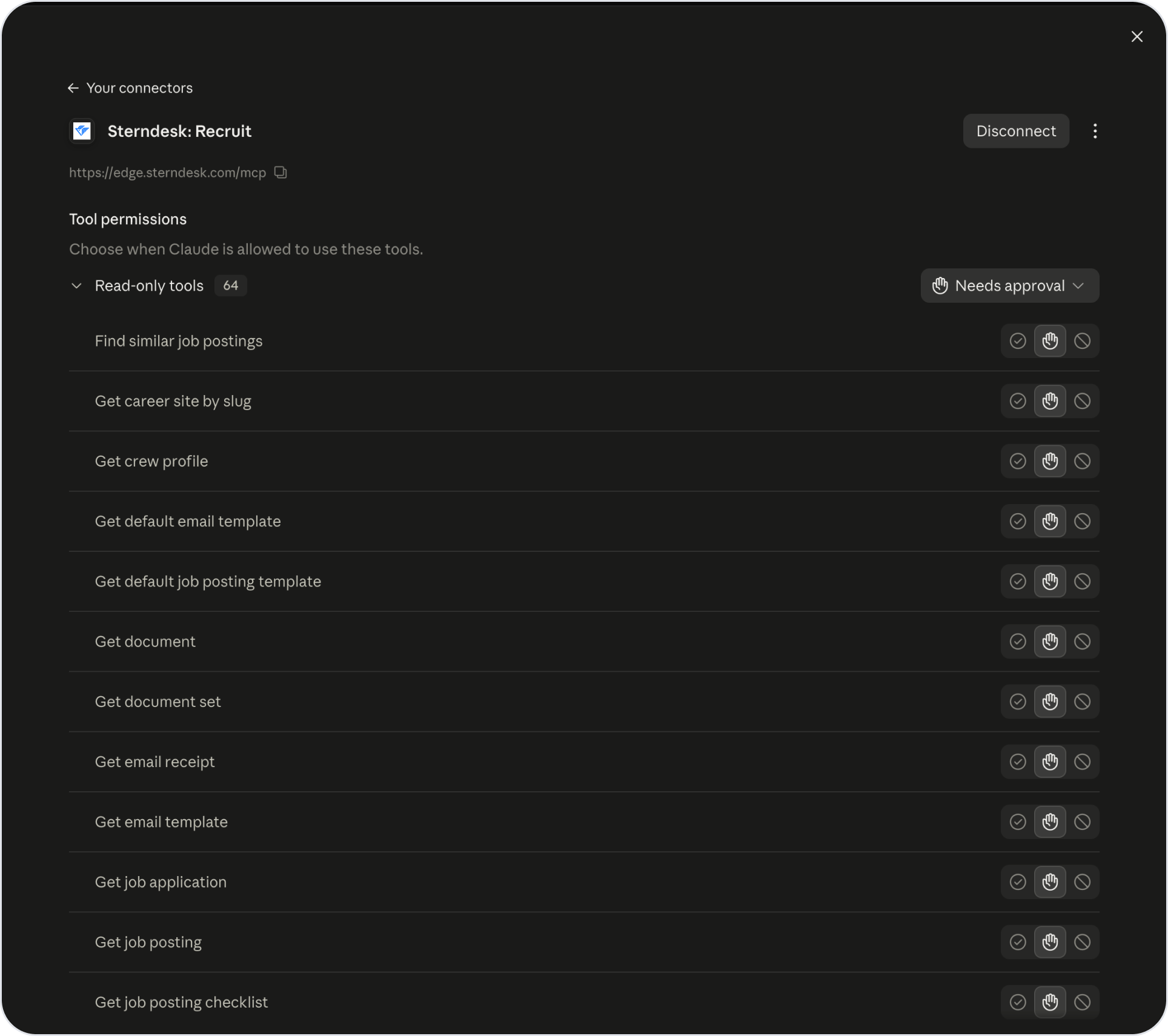
You can also control when Claude is allowed to use individual tools from this screen.
5. Try the connection
Start a new conversation in Claude and ask it to retrieve information from Sterndesk Recruit. For example:Find Chief Engineers with PSV experience.You can also ask Claude to retrieve information about a particular candidate:
Show me the profile information for [candidate name].Claude will use the appropriate Sterndesk Recruit tools to retrieve the requested information.