> ## Documentation Index
> Fetch the complete documentation index at: https://docs.sterndesk.com/llms.txt
> Use this file to discover all available pages before exploring further.
# Connect to Claude
> Connect Claude to Sterndesk Recruit and access your recruitment data directly from your conversations.
Connect Sterndesk Recruit to Claude using a custom MCP connector.
Once connected, Claude can use Sterndesk Recruit tools to search and retrieve recruitment information directly from your Sterndesk organization.
## Before you start
Make sure you have:
* A valid Sterndesk API key
* Access to custom connectors in Claude or Claude Desktop
**Note:** Every API key is tied to a Sterndesk account and organization. You don't need to sign in to Sterndesk separately when connecting Claude — the API key is used to authenticate the connection.
If you don't have an API key, contact the Sterndesk account owner or administrator who manages API access for your organization.
## 1. Open Connectors
In Claude or Claude Desktop:
1. Open **Settings**.
2. Go to **Connectors**.
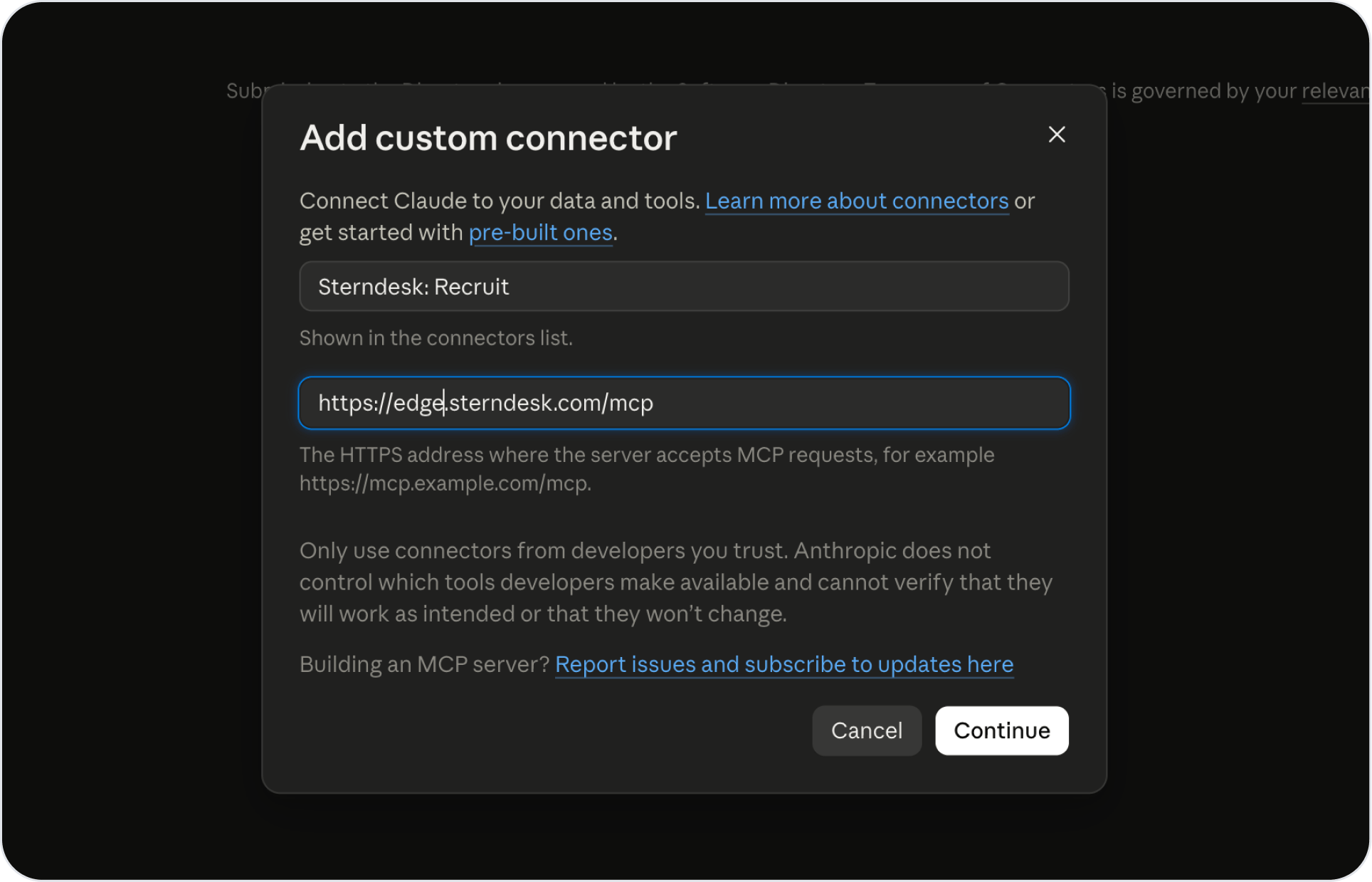
3. Click **+ Add** to add a custom connector.
## 2. Add Sterndesk Recruit
Enter the following MCP server URL:
[**https://edge.sterndesk.com/mcp**](https://edge.sterndesk.com/mcp)
For the connector name, we recommend:
**Sterndesk: Recruit**
**Note:** Claude allows you to choose your own name when adding a custom connector. We recommend **Sterndesk: Recruit** to make it easy to distinguish Recruit from other Sterndesk products and integrations.
 ## 3. Configure authentication
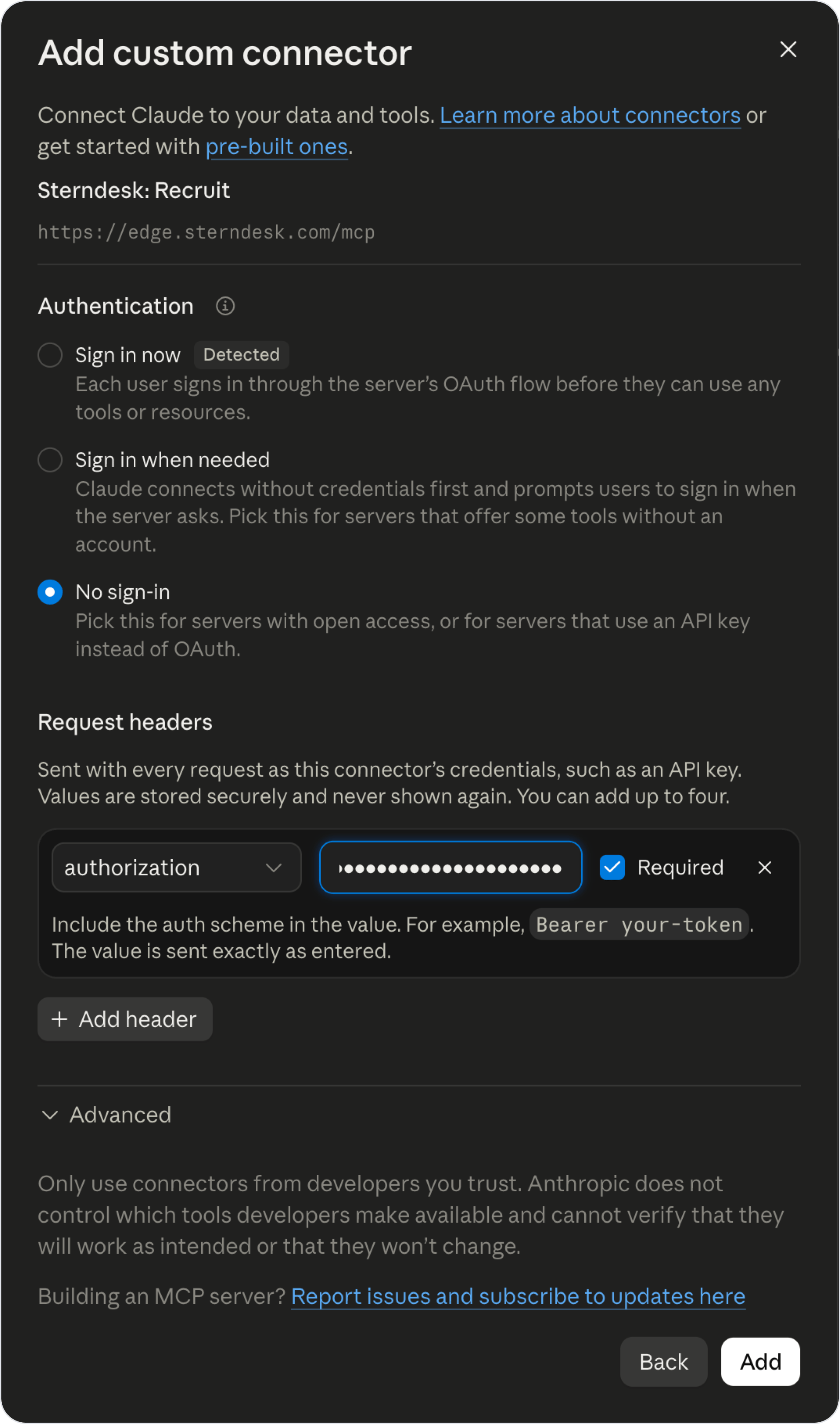
Under **Authentication**, select **No sign-in**.
Sterndesk Recruit authenticates requests using your personal API key.
Under Request headers, add:
## 3. Configure authentication
Under **Authentication**, select **No sign-in**.
Sterndesk Recruit authenticates requests using your personal API key.
Under Request headers, add:
**Header:** `authorization`
**Value:** `Bearer YOUR_API_KEY`
Enable **Required** for this header.
Replace `YOUR_API_KEY` with your personal Sterndesk API key.
For example:
**Bearer sk\_...**
**Important:** There must be a space between `Bearer` and your API key.
Your API key will be sent with requests from Claude to the Sterndesk Recruit MCP server.
 ## 4. Verify the connection
Click **Add** to finish the setup.
Open **Sterndesk: Recruit** from your connectors. Once the connection is successful, Claude will display the Sterndesk Recruit tools available through the MCP server.
## 4. Verify the connection
Click **Add** to finish the setup.
Open **Sterndesk: Recruit** from your connectors. Once the connection is successful, Claude will display the Sterndesk Recruit tools available through the MCP server.
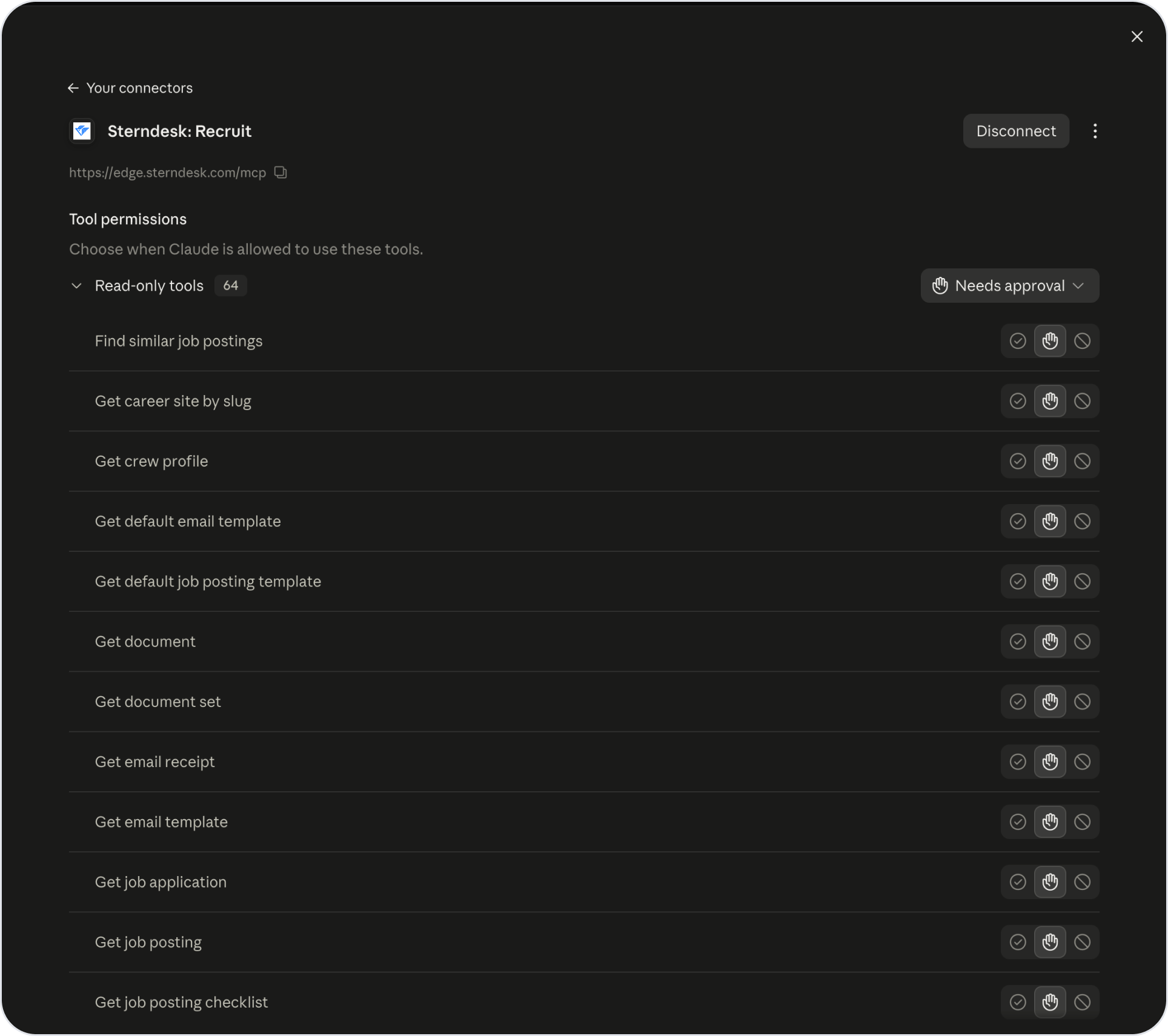 **Sterndesk Recruit tools available to Claude after a successful connection.**
You can also control when Claude is allowed to use individual tools from this screen.
## 5. Try the connection
Start a new conversation in Claude and ask it to retrieve information from Sterndesk Recruit.
For example:
> Find Chief Engineers with PSV experience.
You can also ask Claude to retrieve information about a particular candidate:
> Show me the profile information for \[candidate name].
Claude will use the appropriate Sterndesk Recruit tools to retrieve the requested information.
## What Claude can do
The current integration is intended for retrieving Sterndesk Recruit data.
Claude can use the read methods exposed through the MCP server to search for crew and retrieve information available through your Sterndesk account.
Actions that modify Sterndesk data are not currently documented for general use.
## Keep your API key secure
Your API key provides access to your Sterndesk data and should be treated like a password.
Do not share your API key with other users, paste it into conversations, include it in screenshots, or expose it in source code or public repositories.
If you believe your API key has been exposed, revoke it in Sterndesk and create a new one.