> ## Documentation Index
> Fetch the complete documentation index at: https://docs.sterndesk.com/llms.txt
> Use this file to discover all available pages before exploring further.
# Connect to ChatGPT
> Connect Sterndesk Recruit to ChatGPT using the Sterndesk MCP server.
Once connected, ChatGPT can use Sterndesk Recruit tools to retrieve recruitment data directly from your conversations.
## Before you start
You need:
* Access to Sterndesk Recruit.
* Access to **Plugins** in ChatGPT.
* A Sterndesk account with access to the organization you want to use.
Sterndesk Recruit uses **OAuth** to authenticate the MCP connection. You do not need to create or manually enter a Sterndesk API key.
> **Production MCP server:** `https://edge.sterndesk.com/mcp`
***
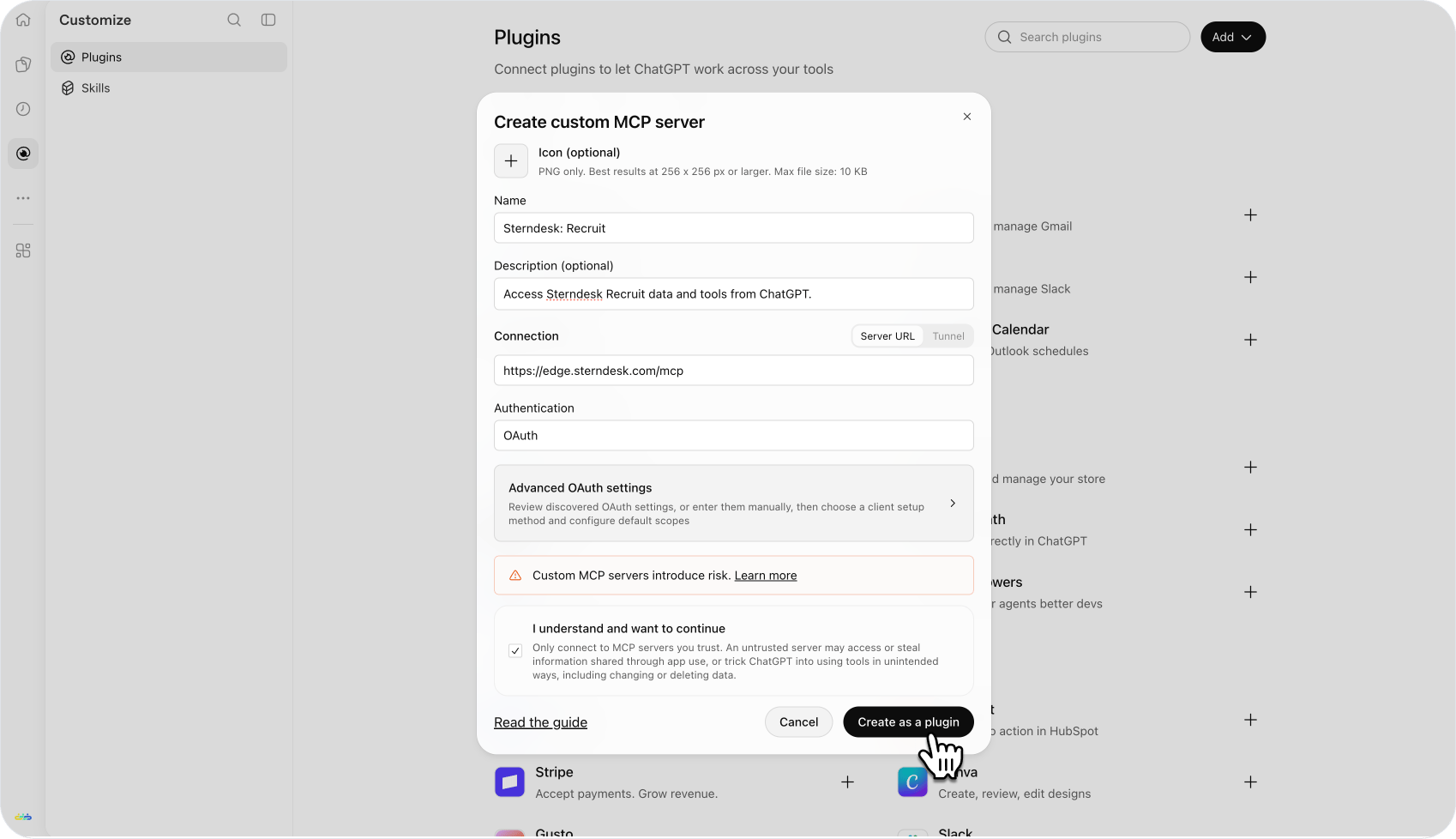
## 1. Create a custom MCP server
In ChatGPT:
1. Open **Plugins**.
2. Click **Add**.
3. Select **Create custom MCP server**.
4. Enter:
* **Name:** `Sterndesk: Recruit`
* **Description:** `Access Sterndesk Recruit data and tools from ChatGPT.`
* **Connection:** `Server URL`
* **Server URL:** `https://edge.sterndesk.com/mcp`
* **Authentication:** `OAuth`
5. Confirm **I understand and want to continue**.
6. Click **Create as a plugin**.
 ***
## 2. Authorize Sterndesk Recruit
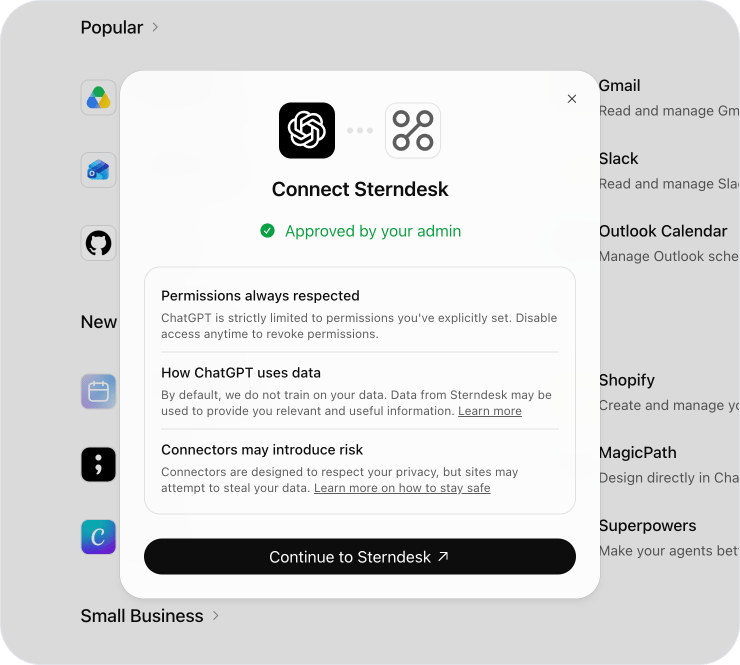
After creating the plugin, ChatGPT starts the OAuth authorization flow.
Click **Continue to Sterndesk: Recruit**.
You may be asked to:
* Sign in to Sterndesk.
* Select your organization.
* Approve access to Sterndesk Recruit.
After authorization, ChatGPT returns you to the plugin.
***
## 2. Authorize Sterndesk Recruit
After creating the plugin, ChatGPT starts the OAuth authorization flow.
Click **Continue to Sterndesk: Recruit**.
You may be asked to:
* Sign in to Sterndesk.
* Select your organization.
* Approve access to Sterndesk Recruit.
After authorization, ChatGPT returns you to the plugin.
 ***
## 3. Verify the connected account
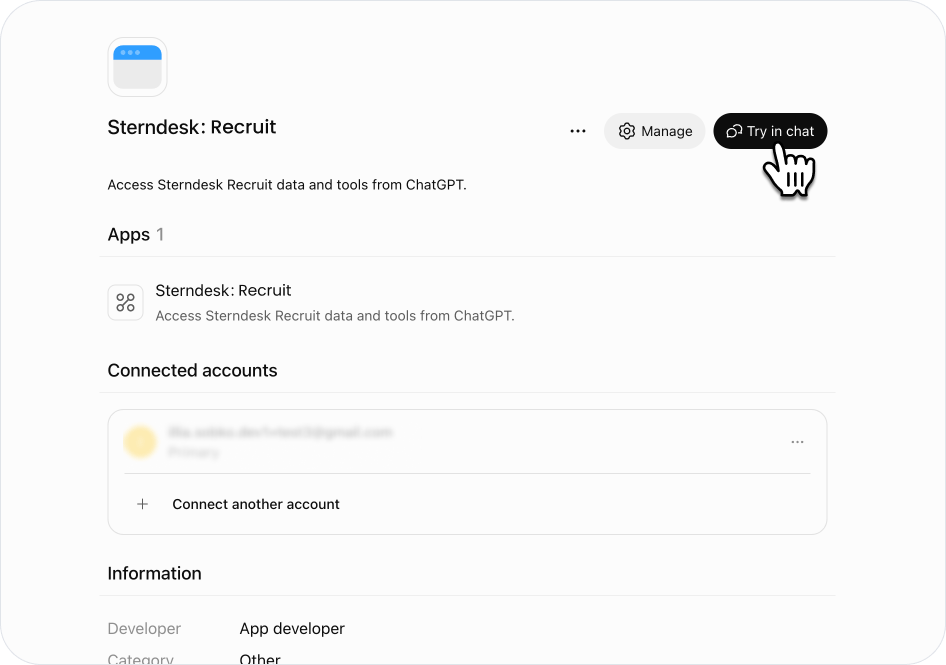
Open **Plugins → Personal → Sterndesk: Recruit**.
Under **Connected accounts**, your Sterndesk account should appear as connected.
From this page, click **Try in chat** to start using Sterndesk Recruit.
***
## 3. Verify the connected account
Open **Plugins → Personal → Sterndesk: Recruit**.
Under **Connected accounts**, your Sterndesk account should appear as connected.
From this page, click **Try in chat** to start using Sterndesk Recruit.
 ***
## 4. Test the connection
Start with:
> `Who am I in Sterndesk and which organization am I in?`
ChatGPT should use the Sterndesk Recruit MCP connection and return information about the authenticated Sterndesk user and organization.
We successfully verified this during testing.
***
## 4. Test the connection
Start with:
> `Who am I in Sterndesk and which organization am I in?`
ChatGPT should use the Sterndesk Recruit MCP connection and return information about the authenticated Sterndesk user and organization.
We successfully verified this during testing.
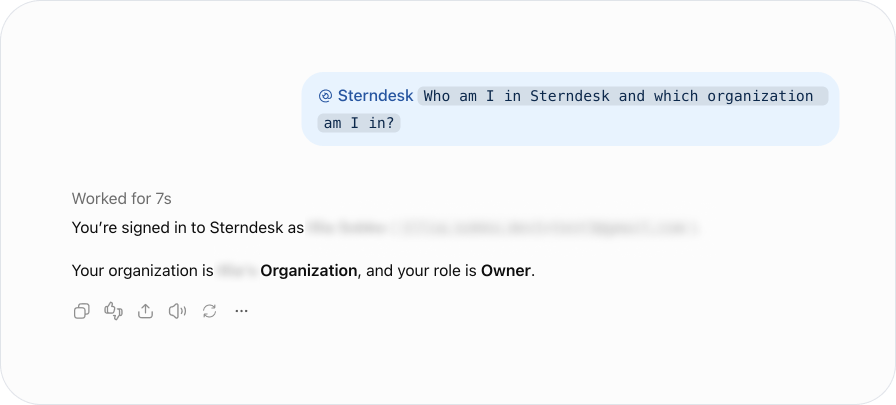 *ChatGPT can now retrieve information from the connected Sterndesk Recruit organization.*
***
## Example prompts
Once connected, users can ask ChatGPT to work with Sterndesk Recruit data. For example:
> `Find Chief Officers with tanker experience, page 1, 20 per page.`
> `Show the STCW certificates and sea service of .`
> `Which candidates best match the open posting?`
The MCP server exposes Sterndesk Recruit tools to ChatGPT, and ChatGPT selects the appropriate tools based on the request.
This documentation is built and hosted on [Mintlify](https://mintlify.com), a developer documentation platform.
*ChatGPT can now retrieve information from the connected Sterndesk Recruit organization.*
***
## Example prompts
Once connected, users can ask ChatGPT to work with Sterndesk Recruit data. For example:
> `Find Chief Officers with tanker experience, page 1, 20 per page.`
> `Show the STCW certificates and sea service of .`
> `Which candidates best match the open posting?`
The MCP server exposes Sterndesk Recruit tools to ChatGPT, and ChatGPT selects the appropriate tools based on the request.
This documentation is built and hosted on [Mintlify](https://mintlify.com), a developer documentation platform.