> ## Documentation Index
> Fetch the complete documentation index at: https://docs.sterndesk.com/llms.txt
> Use this file to discover all available pages before exploring further.
# Authentication
> Learn how to authenticate requests to the Sterndesk API.
Sterndesk uses personal API keys to authenticate API requests.
API keys are created from your Sterndesk account and provide API access within the associated Sterndesk organization.
### Create an API key
To create an API key:
1. Sign in to Sterndesk.
2. Go to **Settings → My account → API Keys**. 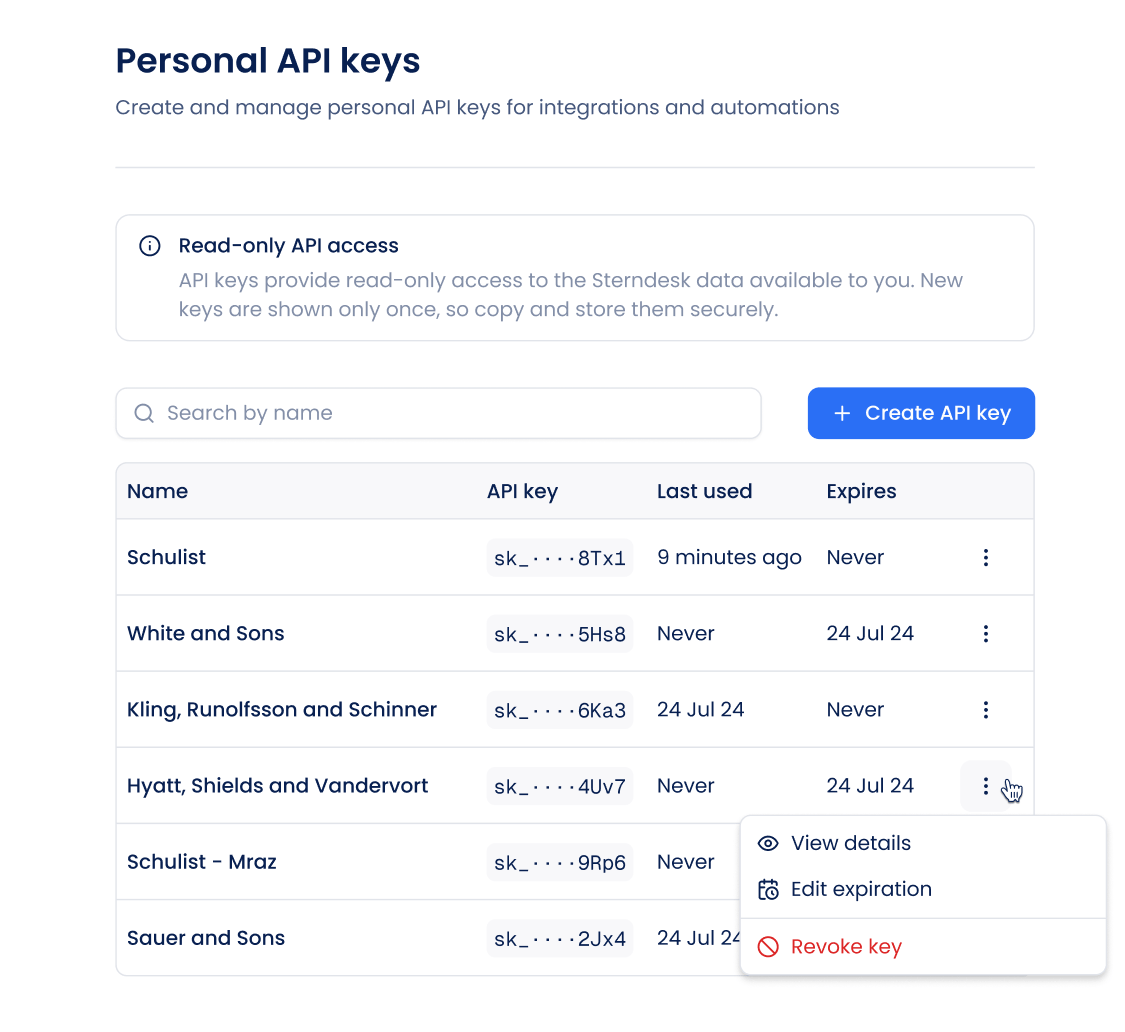 3. Click **Create API key**.
 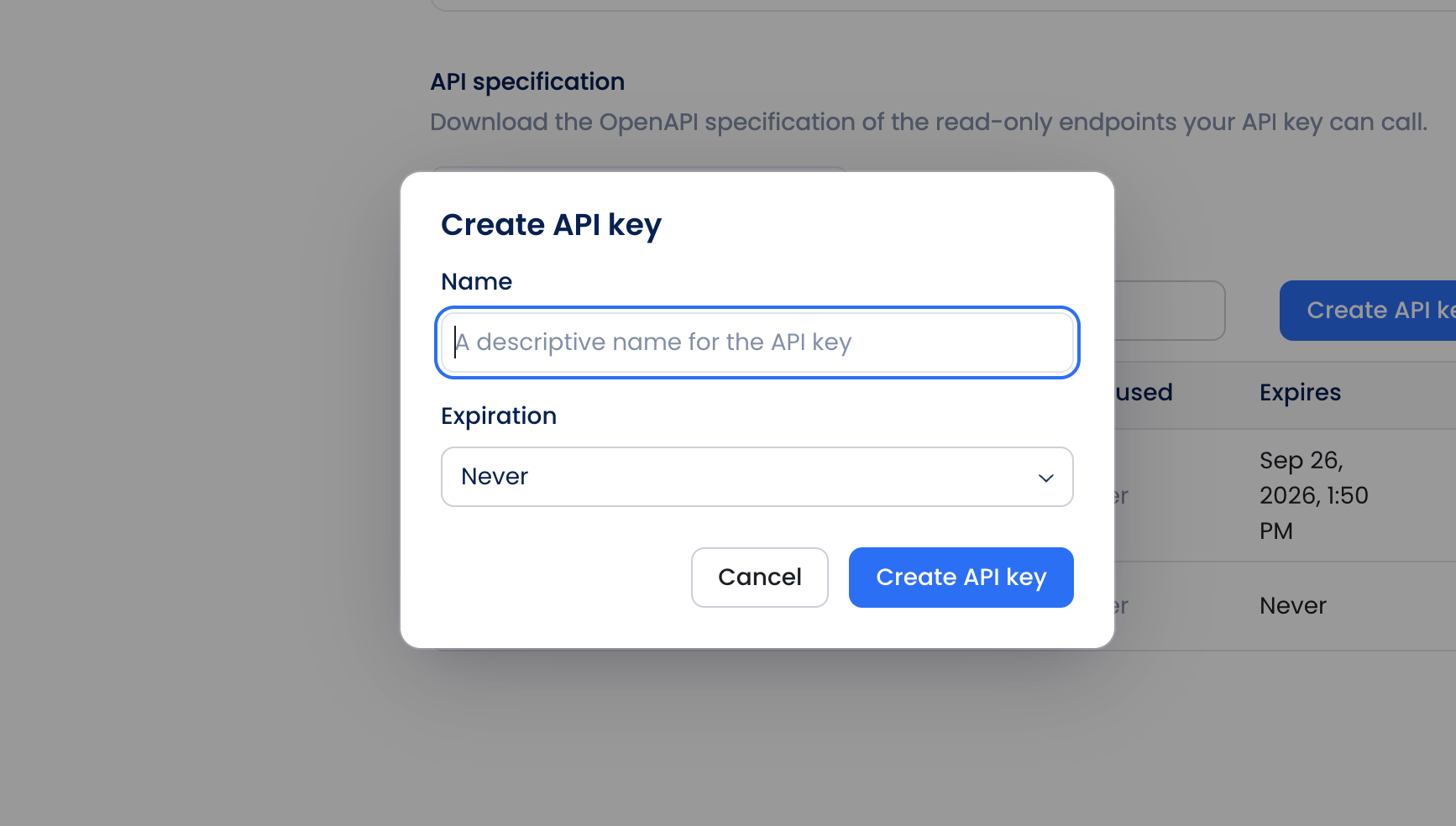 4. Enter a descriptive name for the key.
5. Configure its expiration.
6. Select the permissions required by your integration.
7. Create the API key.
8. Copy and securely store the key.
**Important**
4. Enter a descriptive name for the key.
5. Configure its expiration.
6. Select the permissions required by your integration.
7. Create the API key.
8. Copy and securely store the key.
**Important**
Your API key is shown only once. You won't be able to view the full key again after closing the dialog.
If you lose the key, create a new one and revoke the old key if it is no longer needed.
### Authenticate requests
Send your API key as a bearer token in the `Authorization` header:
```text theme={null}
Authorization: Bearer
```
For example:
```text theme={null}
curl https://edge.sterndesk.com/rpc/rpc.v1.RootService/WhoAmI \
--header "Authorization: Bearer $STERNDESK_API_KEY" \
--header "Connect-Protocol-Version: 1" \
--header "Content-Type: application/json" \
--data '{"echo":"bar"}'
```
Never send your API key as part of a URL or query parameter.
### Permissions
Permissions determine which operations an API key can perform.
Select the permissions your integration needs when creating the API key.
Most available API operations provide access to Sterndesk data. Operations that modify data may require an additional permission.
For example, uploading candidate documents requires:
```text theme={null}
sterndesk:documents:write
```
Permissions cannot be added to an existing API key. If your integration requires additional permissions, create a new key with the required permissions.
### API key security
Treat API keys like passwords.
To keep your keys secure:
* Don't expose API keys in client-side applications.
* Don't include API keys in public source code.
* Don't commit API keys to Git repositories.
* Use environment variables or a secrets manager to store keys.
* Use separate API keys for separate integrations when appropriate.
* Revoke keys that are no longer needed.
* Revoke a key immediately if you believe it has been exposed.
### Expiration
API keys can have an expiration date.
Once a key expires, it can no longer be used to authenticate API requests.
You can view and manage the expiration of your keys from **Settings → My account → API Keys**.
### Revoke an API key
You can revoke an API key at any time.
Go to **Settings → My account → API Keys**, open the menu for the key, and select **Revoke key**.
Revocation takes effect immediately. Integrations or automations using the key will no longer be able to authenticate.
Revoking one API key does not affect your other API keys.